Workspaces
Work in one workspace at a time and switch between them from the sidebar.
A workspace is a self-contained space for one team — its own channels, agents, and knowledge, kept completely separate from every other workspace. If you belong to more than one, Woodstock shows you one at a time and lets you switch between them.
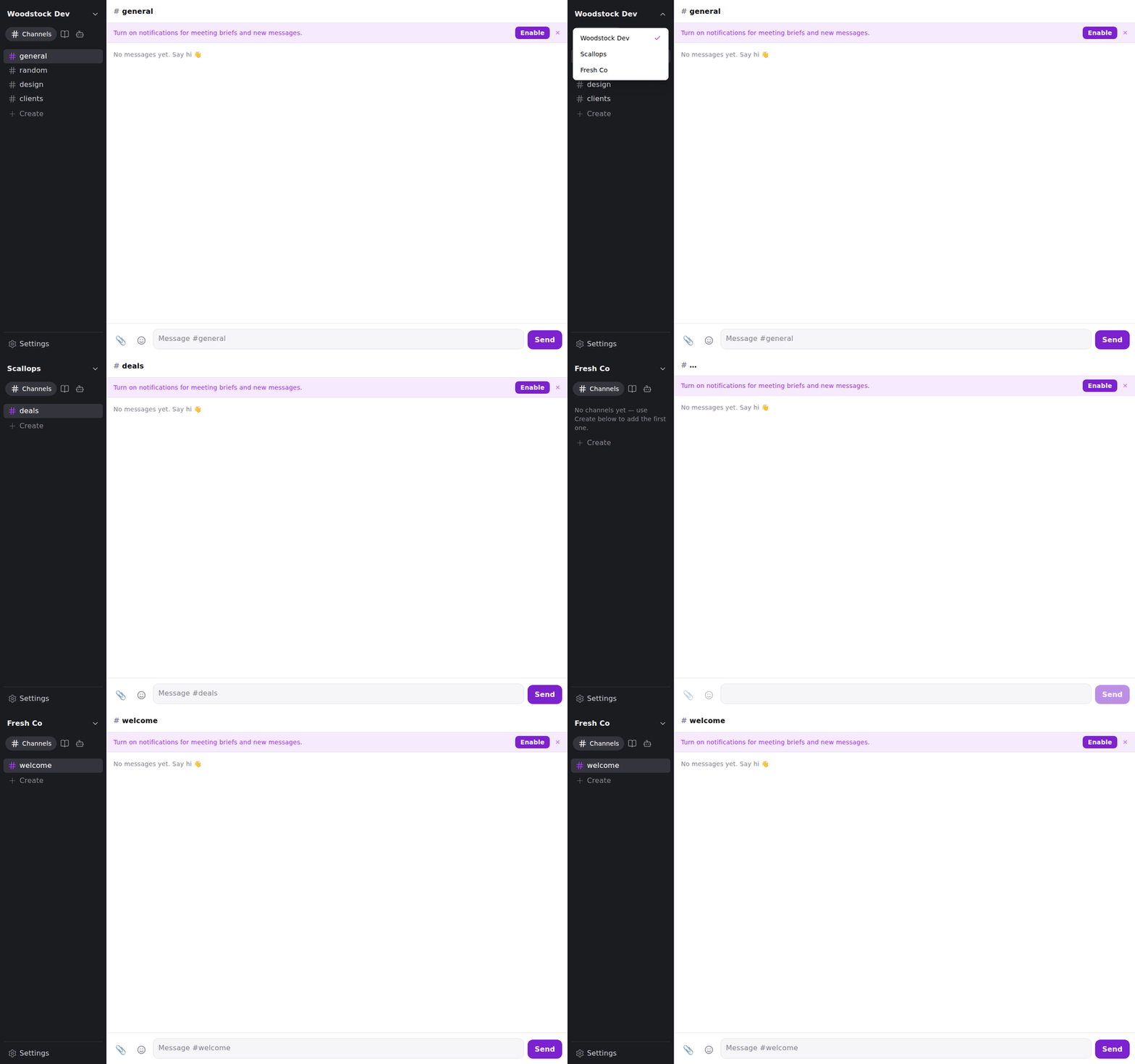
See which workspace you're in
The top icon in the sidebar shows your current workspace's initial in white on a colored background. Each workspace keeps its color when you reload. Hover to see its name, or select it to open the workspace list, where the current workspace has a check beside its name. Everything you see — your channels, sections, and agents, and everything under Knowledge (people, companies, projects, meetings, documents, and pages) — belongs to that workspace and nothing else. A teammate's channels or knowledge in a different workspace never mix into this list.
Your knowledge stays in its workspace
Open Knowledge and pick a category — People, Companies, Projects, Meetings, Documents, or
Pages — and you see only what belongs to the workspace you're in. The same holds everywhere a name
can come up: typing # in a message or a channel's About suggests only this workspace's people and
projects. Switch workspaces and the lists change with you. If you belong to more than one workspace,
one workspace's people never appear while you're working in another.
Your workspace Settings work the same way: the agents you create and the connectors you set up under Settings belong to the workspace you're in, so a change you make there affects that workspace alone.
Manage workspace roles
Open Settings → Members to see everyone in the current workspace and whether they are an Admin or Member.
- Admins can promote an existing Member or demote another Admin. A workspace can have several Admins, but its last Admin cannot be demoted.
- Members can see the roster and keep using channels, shared pages, and agents normally, but cannot change roles.
- Only Admins can choose, replace, or clear the workspace's How we work page—either directly in Settings or by confirming an agent's proposal. If an Admin is demoted before confirming, the proposal is refused.
- Your role is checked at the moment a change is saved, the same way in Settings and on an agent's card—not when the screen loaded. Saving the page that is already set, or clearing a setting that is already empty, changes nothing and adds nothing to the workspace's record of changes.
An Admin role manages these shared workspace settings; it does not reveal private channels, messages, or attachments. New and existing memberships start as Member unless an Admin is explicitly designated during workspace setup.
Switch to another workspace
Choose the workspace icon at the top-left. A list opens showing every workspace you belong to, with a check beside the one you're in. Choose another, and the sidebar swaps to it: its channels and its agents replace the ones you were looking at. The workspace you left is one tap away whenever you want it back.
On a phone the list opens as a sheet from the bottom of the screen; on a wider screen it opens beside the icon.
If you belong to only one workspace, the icon represents that workspace, and opening the list confirms it's the only one — nothing about your day changes.
Choose an appearance
Open Settings → Appearance and choose Light, Dark, or System. The app changes immediately and remembers your choice on this device. System follows your device's appearance, including changes while the app is open. Your choice does not affect teammates or other devices.
Woodstock remembers where you were
The workspace you're in is remembered on this device, so when you reload or reopen the app you land back in the same one. Open Woodstock on a new device and it starts you in your first workspace until you switch — the choice is per-device, not synced across them yet.
Start a workspace that has no channels yet
A brand-new workspace opens empty. When it has no channels, the sidebar says so and offers to create the first one. Choose the plus button beside Channels, then Create channel, name your channel, and it's created in that workspace — you're in and can start working right away.
Open a link into another workspace
When you tap a notification for a message in a workspace you're not currently in, Woodstock switches to that workspace for you and opens the channel — you don't have to find and switch to it yourself first.
What's next
Creating a workspace, inviting or removing people, and assigning administration beyond roles and the How we work page are on the roadmap. For now a new workspace is set up for you once, and then everyone in it can switch to it and work as described above. Per-workspace unread badges on the switcher, and syncing your last-used workspace across your devices, are also planned.