Team Brain
Drop a file or a link into a channel and Snoopy reads it, files it onto the right pages, and tells you exactly what it read and which pages changed.
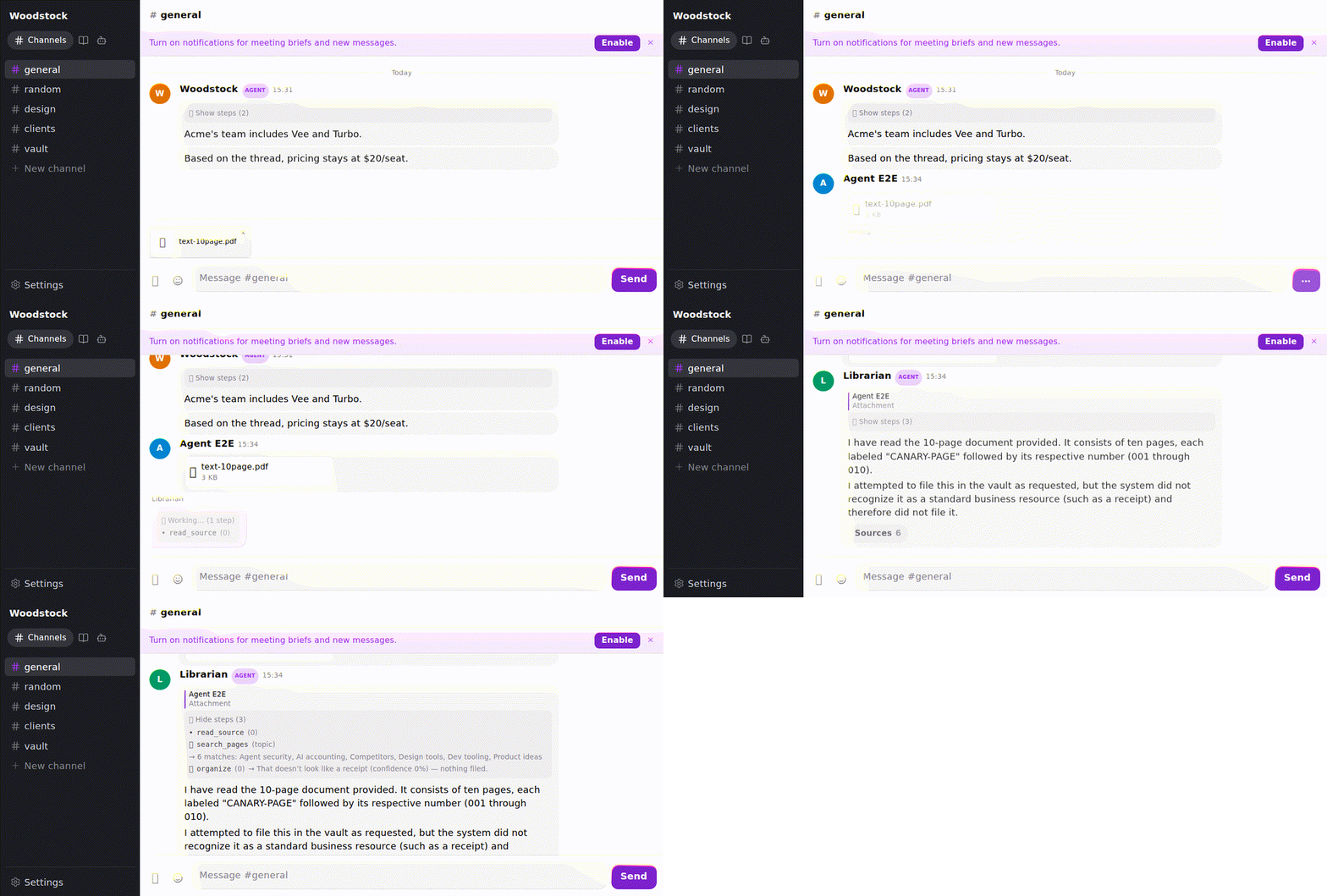
Drop a PDF, a photo, or a link into any channel. Snoopy reads it and replies in the same thread, saying exactly how much of it it managed to read. No command, no button — dropping the thing is the whole interaction.
Browse knowledge pages
Open Knowledge in the sidebar to browse pages and their nested subpages. Each row shows a page icon and title; selecting a page highlights it, including when you follow a link from a note. Pages with children have a permanently visible chevron to expand or collapse them. The page icon stays before the title, and the chevron sits at the far right on desktop and mobile. There are no preset collection groups or manual creation controls in this navigation.
When you tap a page, its title and breadcrumb show right away while the page loads; its note and details then appear together. The breadcrumb shows right away when the page sits in a part of the sidebar tree that has already loaded; otherwise it appears with the note. The page opens as an unboxed Markdown note with a centered reading width. Open Details for Properties, Links and History. On a phone, details open as a full-screen view with Back to page; on desktop, as a sliding right panel matching channel details. Direct subpage links use the plain page icon. Cross-page links use a page icon with an outlined arrow at its bottom right. Following a page link in details closes it and opens the target note.
Ask the agent in chat to update knowledge. The page view has no manual rename or editing controls. Properties shows built-in metadata: title, parent location, creation time, creator, last recorded edit and editor, active status, page ID. Missing attribution is labeled Not recorded; emoji customization remains planned. Legacy custom fields and typed relationship groups are omitted. History retains recorded source evidence.
The breadcrumb shows the page’s parent path. Select any ancestor to open it; the current page remains the last item. Long paths scroll horizontally. If the path cannot load, use Retry page path.
What the reply looks like, in every case it can hit
Every drop lands in one of five outcomes. The words matter more than the labels — nobody should have to learn this vocabulary to understand the reply.
The page count is not decoration — it is the shortest proof the whole thing was read, and it is the number you will check. Where something got in the way, the reply names one plain next step. An ordinary message with no file and no link gets no reply at all; that silence is deliberate.
When it reads a picture rather than lifting text
A scan or a photo has no text inside it to pull out, so Snoopy describes what it can see instead — and says that is what it did:
Done — read all 3 pages. Invoice from Ferrous Supply Co, ฿77,400, due 30 Sep.
That’s my reading of the scan rather than its own text, so I’ll quote it as a description, not word-for-word.
That distinction is kept with the file, so a description is never later quoted back to you as though it were the document’s own words.
Pulling text out of a normal PDF is free, so it just happens — and so does reading a short scan or a photo. There is no point asking permission for something that costs about as much as the read you already got for free.
Longer scans are where it stops. Past a few pages, reading by eye costs enough that Snoopy will not do it on its own — it tells you plainly that there is no text in the file and how long it is, so you can send a copy with real text in it or paste the part you need.
Coming next — not true yet. Being asked whether to read a long scan by eye, and saying yes. Accepting means replying a message later, and an agent cannot yet reach back to a file from an earlier message — so rather than offer something you could not accept, Snoopy does not offer it at all. This arrives with multi-turn agent chat.
Links
Paste a link and Snoopy keeps the article you shared — the writing itself, not the menu, the cookie banner or the list of tags down the side of the page. It keeps it as it reads today, so what you shared stays what you shared even if the page changes next month.
That is what makes a link findable later. Ask about the Cloudflare post you dropped last week and you find it by what it is about — "model context protocol", "MCP server" — because those are the article's own words and they are what got kept. It no longer turns up under whatever unrelated tags happened to be listed in the page's sidebar.
Snoopy reads Thai pages the same way it reads English ones.
When a page has no article in it, Snoopy says so and keeps no text. A shop listing, a home page, a page that assembles itself in your browser — there is no writing on it to keep, so rather than quietly filing the navigation menu under your link, Snoopy tells you it could not find an article there. It records that it looked and found nothing, and keeps no text at all — so nothing from that page can ever be quoted back at you as though it were the page.
A link that redirects to another page on the same site is followed. Plenty of ordinary links do
this — a trailing slash, a canonical address, an http link that upgrades to https — and Snoopy
resolves the hop and keeps the page it lands on, telling you the address it settled on so you do not
have to open the link and copy it yourself. It follows a short chain of these and then stops.
A link that forwards to a different site is not followed. Shortened links (lnkd.in/…,
bit.ly/…) and share links that hand off to another domain point somewhere Snoopy
never resolved, so it does not open them — it tells you the link forwards elsewhere and asks you to
paste the address it lands on. It does not guess where that is: it never resolved it, so claiming
to know would be a guess dressed as a fact.
A YouTube channel link reads as the channel's latest videos. Paste
https://www.youtube.com/@Fireship — or youtube.com/@…, m.youtube.com/@…, a /channel/UC…
address, or the channel's Videos tab — and Snoopy reads the channel's latest videos and tells you
what it has been posting lately. What it keeps is the list itself: each video's title, its link and
when it went up, newest first, along with the channel's name, its /channel/UC… address and its
own short description — so you can ask for the titles or a link later. Each drop is its own reading
of that day's list, so dropping the same channel tomorrow shows tomorrow's. No YouTube account or
key is involved.
How exact "when it went up" is depends on YouTube. Snoopy asks YouTube's video feed first, which
gives the exact time — up to the 15 most recent, Shorts included (their link says /shorts/),
live streams not told apart. Since early October 2026 that feed has not answered for any channel,
so Snoopy reads the channel's Videos tab instead: up to the 30 most recent, each with YouTube's
own rough "3 hours ago" or "2 days ago" and the moment Snoopy looked — enough for a daily digest to
tell what is new, to within YouTube's rounding. The Videos tab leaves out Shorts and live
streams. When the feed answers again, Snoopy uses it again without anyone changing anything.
Dropping the channel link does not create or update a page by itself. Snoopy replies with what the channel has been posting, and the channel and its latest videos stay available as a source without adding a company page or copying the upload list into your pages. If you want durable page content, ask directly — for example, “Create a Fireship company page from this channel.”
An agent asked about a channel link reads it the same way, and can then open any of the videos that list named, in the same answer. A daily digest routine does this with its list of channels too — a routine keeps nothing it reads. See Agents.
If YouTube has no channel at an @ address, Snoopy says so. If neither the feed nor the Videos tab
returns the channel's list just then, Snoopy says it could not get it — it never reports that as
"no new videos". For a
/channel/UC… address YouTube answers a missing channel the same way it answers a passing hiccup,
so Snoopy says it could not get the list there too. Old /c/… or /user/… channel addresses are
read as ordinary pages, as before.
A YouTube video link reads as what the video says. Paste a video — youtube.com/watch?v=…,
the youtu.be/… share link, m.youtube.com/watch?v=… or a /shorts/… link — and Snoopy reads the
video's captions and tells you what it is about. It reads them in the language the video is
spoken in: a Thai video is read in Thai, and an English talk that YouTube has dubbed into twenty
other languages is still read in English. To know which language that is, Snoopy asks YouTube — the
creator sets it when uploading. If YouTube does not say (older and casual uploads often leave it
blank), Snoopy reads the video's original captions as it always has. What it keeps is the captions
themselves, each passage marked with the time it is said ([12:40]), so you can ask about the video
later and find the moment.
Snoopy tells you which kind of captions it read:
- Captions the creator uploaded are the video's own words, so an answer can quote them exactly.
- Captions YouTube generated automatically — nearly every Thai video has only these — often mishear names (an interview's "Sam Altman" can come out as "Samman"). Snoopy says the captions were generated automatically, and an answer summarises them rather than quoting them as the speaker's words.
- Captions in a different language from the one spoken — a creator's translation, or a track YouTube generated from a dubbed voice — are not the speaker's words either. Snoopy names both languages and summarises rather than quotes.
A video with no captions is not guessed at: Snoopy says it has no captions it can read and keeps nothing. A private, removed or age-restricted video is reported as unavailable. Asking about the same video again in the same channel does not pay to read it again — the answer comes from the captions already kept. A daily digest routine reads a channel's newest videos the same way, without keeping them.
Reading captions goes through a paid captions service, charged per video read. Whoever runs your Woodstock switches it on with one key and sets that service's monthly spending limit — one limit shared by every workspace on that Woodstock; until then Snoopy says captions aren't switched on here yet. Every video read is noted, with its estimated cost, on the run that read it.
A page's tables are kept as rows, in place. A Wikipedia article with a table of figures — GDP by year, a league table, a price list — keeps that table where it sits in the article, one row per line:
| Year | GDP (in Bil. US$PPP) | GDP per capita (in US$ PPP) | GDP (in bn. US$nominal) | … |
| 2022 | 1,596.5 | 22,255.8 | 495.7 | … |
| 2023 | 1,692.7 | 23,607.1 | … |
So ask an agent to chart GDP per capita from that page and it charts the page's own numbers, rather than asking you for a screenshot. A page without tables reads exactly as it did before.
A data link reads as its data. Paste a link that returns data rather than a web page — JSON from an API such as the World Bank's, a CSV or tab-separated file, or plain text — and the agent gets the data exactly as it was sent, every value as written, so it can chart or answer from it. It is kept the same way a page is, under your link.
A very long page is read in part, and the agent says so. Snoopy reads the first 512 KB of a page or a data link and keeps up to 40,000 characters of what it reads. When one is longer, the reading says it was read only in part — and, when the length is known, how much was kept of how much ("kept the first 40,000 of 52,000 characters"). Wikipedia's Economy of Thailand is one such page: its GDP table reads from 1980 to 2023, and the forecast rows after that are past the part Snoopy read, so an answer from it says the page was read only in part.
When the numbers do not come through, the agent says so — and does not guess why. If the figures you asked about are not in what it read (a chart that is only a picture, a table that builds itself in the browser), it tells you they did not come through and offers a way forward, such as pasting the table. It does not make up a cause like "it's an image" unless the reading said so.
Every other way a link can fail says which thing went wrong: a page that answered with an error reports that error, a site that never answered reports that, and an address Snoopy is not allowed to open is declined as exactly that.
Already-saved links are not revisited. Links dropped before this change keep the reading they were saved with, menus and all, and an answer can still quote one. They are kept rather than rewritten on purpose: a page can change between two readings, so a later read is a second observation rather than a correction of the first. Drop the link again to get a fresh reading.
Coming next — not true yet. Pages that build themselves in your browser. A few sites send
almost nothing until a browser runs their code, so there is no article for Snoopy to find and it
will say so. Reading those needs a real browser doing the assembling first. Links that forward to a
different site — shortened links included — being followed safely is coming too, and for the
same reason it is not here yet: it has to be done in a way that cannot be pointed somewhere it
should not go. Videos with no captions at all are coming later too. Reading longer pages whole
(past 512 KB) comes next as well. Data files you drop (a .json, .csv or .txt upload),
spreadsheets, Google Sheets share links and XML or RSS feeds are not read yet — a data link is.
The agent sees the numbers; it does not run calculations over a large data set.
Long files and links are read to the end
Ask about a long talk, a long article or a thick PDF and the answer covers all of it, ending included — not just its opening. Anything short enough is read whole. Anything longer — a page, a PDF, a video's captions or a data link alike — comes back to the agent as two things: a summary of the whole thing, start to finish, so a "summarize this" answer reaches the closing point even when the source runs to an hour of captions; and the first 4,000 characters word for word, so the agent sees what the source actually looks like — the first rows of a data set, not a description of them.
When you need the exact words or the exact figures — "quote what she says about design systems", "chart the last ten years of that table" — the agent goes back to the full text it kept and reads on from there, not from the summary. A summary is never quoted as the source's own words.
Turbo    @Marcie summarize this: https://youtu.be/…
Marcie   A 40-minute talk on keeping quality when AI makes building cheap. Four rules: … and she
         closes on spending the time AI saves on one standout piece per quarter.
Turbo    @Marcie quote what she says about design systems
Marcie   "A design system that only makes things consistent is a photocopier." (from the captions,
         generated automatically — names may be misheard)
Files and links from earlier in the conversation
You never have to drop something twice. Ask about a file or link from further up the channel — "what did the PDF Vee shared say?" — and the agent opens it and answers. Whatever it opens is kept, in the channel it was opened in, the same as a drop: ask again tomorrow about the same file or video and the answer comes from the kept copy rather than a fresh read. A file that was already kept when it was dropped is not read a second time. A web page is read afresh each time you ask, because it can change.
- Many at once. Drop half a dozen files and links in one message and every one of them is read before the answer — none is quietly skipped.
- Kept where it was shared. A file or link opened in a private conversation stays there; it never turns up in a search from another channel. Delete the message a file came from and its kept copy goes with it. A link's copy stays with the answer that read it, even if the message that first posted the link is deleted.
- No "saved" chatter. Replies don't announce that a copy was kept. In a channel set up to capture what you drop, a drop that was read but not filed onto any page still ends with "Nothing was filed from report.pdf.", so nothing is silently left behind; anywhere else, an answer is just the answer.
Filing what you drop
Reading the file is no longer where it ends. Snoopy files useful dropped material onto the right pages in the same reply — a meeting page where one is worth having, a line on the pages it concerns — and names every page it touched as a link you can tap. A bare YouTube channel link is kept as a source without changing pages unless you explicitly ask. The pages Snoopy does change read like something a person wrote: a line under the right heading, no citation marks, no file names pasted in.
What the reply says, case by case
The agent tells you in its own words every page it made, added the drop to or edited, each as a link you can tap — the way a co-worker would. The reply is only its words. If it leaves a page out, a small grey note under the reply names it — Also edited [Acme] — so nothing changes without you seeing it, and you can tell the agent it missed one. If the agent's turn broke after it changed pages but before it could reply, the note says that: Snoopy stopped before replying. Made [Acme quote · Oct 2026]. A reply that names every page has no note. The note shows in the Woodstock app only. A refusal is a named line in the reply, added by the system whatever the agent wrote — read, not filed and why — and never a claimed success. That is a deliberate fix: on the previous build, two of four drops were reported as filed after the filing had been refused.
Where things go
Every page belongs to one of five collections — Company, Person, Project, Meeting, Document — or to none. Each collection has a small set of headings the agent files under (a company page has Overview · Current status · People · Projects · Meetings · Documents; a meeting page has Attendees · Summary · Decisions · Actions), and a heading appears only once something is written under it, so an untouched page stays empty rather than sprouting a skeleton.
- A page, or a line. Material that is its own subject — meeting notes, a report — gets its own page in the right collection. A quote, a contract, a profile is about a company or person and becomes one line on that page, however long it runs — not a page of its own. Once in a while it still gets an extra page too, so read the reply if it matters.
- A meeting is noted on every company and project page it concerns — one line under Meetings on each, linking the meeting page. People who attended get a page if they have none; a name that merely passes by does not.
- One fact, written once, on the page it is most about, as one plain claim per line — no hedging.
- A task keeps its owner.
Ben: workspace sidebarin your notes stays Ben's on the page, whichever section it lands in — owned items are never folded into a summary that drops the names. - Pages update in place. A newer fact replaces the line it supersedes, and the page’s history keeps the old one. A line a person wrote is never rewritten — the agent adds beside it, and if it tries to replace one, the filing is refused and the reply says which line.
- Tell it where.
@Snoopy note this: Priya is the new point of contact at Acme from Octoberfiles exactly that — a line under People on Acme Corp, and a page for Priya when the note says enough to earn one — and the line traces back to your message. A message with no file, no link and no mention gets no reply.
Correct a page by telling the agent
When a page says something wrong, say so in the channel. “@Snoopy the Acme renewal is 15 Nov, not 1 Nov” — Snoopy opens Acme, changes that one line, and tells you which page it changed, as a link: Fixed the renewal date on [Acme]. Everything else on the page stays as it was, and the page's History gets a new line you can tap to see the old text, the new text and your message.
A correction is an edit, not a filing: nothing new is filed, and no extra page appears. A file or a link you drop is still filed the way it always was. An agent can only change pages when it has been allowed to edit them (Settings → the agent → its tools); one that can't tells you so instead.
When the new line names a document — “see the [renewal letter]” — the link has to be one you can open. A link to a document from a private channel, or from somewhere you can't reach, is refused, the reply says so, and nothing on the page changes; ask again without the link, or once the agent has read the document here.
Every change can be traced back
Nothing is stamped into the page itself. Beside every change an agent makes — a filing or a direct edit — Woodstock records the message that started it and what the agent read while it worked, and for a filed line which source it came from and where in it: the page number of a PDF, the line of a note. So a line can always be traced back to the conversation and the files behind it. Reading a page also tells Snoopy which sources ever contributed to it, newest first, so its answers about a page can point at the documents behind it.
A named document opens
When Snoopy files a file or a link, the page can name it as a link — the same understated link a page reference gets — and tapping it opens the original in a new tab: the PDF in your browser's own viewer, a link at its address. Snoopy puts the link where you would want to open the document from, usually the row under Documents on a company or project page, sometimes beside the status line it belongs to. What it never does is cite: no footnote, file name or marker on a claim, because where a fact came from is already kept underneath the edit, where Snoopy reads it. A link is for you; the trace is for Snoopy. Where a link goes is guidance, not a hard rule — it can be tuned as your pages settle, and a link can only ever name the document Snoopy is filing at that moment. A note typed into the channel and filed on request has no document behind it, so it gets no link. If the original cannot be opened — the drop was deleted, or it sits in a channel you cannot see — the link stays and says Couldn't open this beside it rather than doing nothing.
Rename any page
Beside a page's title is a Rename button. Type a new name, save, and the header updates in place — and that works on any page, meetings included. A meeting page used to be the one kind you couldn't rename, on the idea that its name was fixed to whatever it was captured as; now you can call it what you'd actually say — Acme kickoff · 2 Sep → Acme pilot kickoff — like every other page.
Renaming never breaks a link. A page's identity is not its name, so every link, bookmark, and page reference that pointed at it keeps opening the same page after the rename. When you rename, you can tick Keep "<old name>" as an alias — then the old name shows under Also known as and a search for what you used to call it still finds the page. A meeting keeps the event it was captured from as its identity, which is why renaming it is safe: you're changing the label, not the meeting. One exception for now: a page made from a dropped link is known by its URL, so renaming it changes the title only and the old title is not kept as an alias — keeping it is on the roadmap.
Pages inside pages
A page can hold other pages, the way a folder holds files — except that the page holding them is still an ordinary page with its own note. “@Snoopy make an Overview page under Acme” puts Overview inside Acme, and from then on it lives there: Acme lists it among its pages, and Overview knows its place.
- Every page has one place — inside one other page, or at the top level. Pages you already have are at the top level until someone puts them somewhere.
- A path finds a page. Its path is the names on the way down, joined with
/:Customers/Acme/Overview. Ask for a page by its path and Snoopy opens exactly that page; capital letters don't matter. The path is worked out from where the page lives, so renaming or moving a page never breaks a link to it — links point at the page itself, not its path. - Names only need to be different within one place. Acme and Beta can each have their own Overview. Two pages in the same place can't share a name: asking for a second Overview under Acme is refused, and the reply names the one that's already there. An archived page still holds its name in its place.
- A name can't contain
/, because/separates the steps of a path. Snoopy suggests the same name with-instead (UI/UX review → UI-UX review). The few pages that already had a/in their name were renamed that way, and their old name is kept as an alias, so a search for it still finds them. - Filing still finds your page. When you drop something about Acme and Acme lives inside Customers, it's noted on that Acme — no second Acme appears at the top level. If two pages in different places share the name and neither is at the top level, nothing is filed and Snoopy says so rather than guessing which one you meant — unless your message or channel names the place, and then it's the one there.
- New pages go where your message or channel says. A link dropped in #resources becomes a page inside Resources. “Put this under Hiring plan: …” files under Hiring plan: Snoopy adds it to Hiring plan, or to a new page inside it, whichever fits. Asking works the same way: “make a page for The Pricing Playbook” in #resources makes it inside Resources. Otherwise a new page starts at the top level, and Snoopy doesn't ask where to put it. That includes a channel with no page of its name — Snoopy doesn't make a Resources page to hold the link. Pages you already have stay where they are; ask to move them. Snoopy doesn't yet work out a place from where similar pages are: a new customer dropped in #general starts at the top level, even when Customers holds every other customer.
- Merging keeps subpages. When Acme 2 is merged into Acme (for now a developer does this), the pages inside Acme 2 move inside Acme. If Acme already has a page with the same name as one of them, the merge is refused and names it, and nothing changes. A page can't be merged into a page inside itself.
- Archiving a page hides the pages inside it too, for now — archive will be replaced by delete, which will say how many pages go with it.
Move a page
Ask in chat: “@Snoopy put Acme under Operations”, “move Weekly notes to the top level”, or a
whole batch at once — “move all the pages listed in Resources to be subpages of Resources”. Name
the pages and the place the way you'd say them; a path such as Customers/Acme works too.
Nothing moves yet. Snoopy puts the move on one card that says exactly what will happen:
Snoopy wants to move 2 pages into Operations. Acme, from Customers, with its 2 subpages: Overview, Kickoff notes. Weekly notes, from the top level.
Each page is named with where it is now, where it goes, and the pages inside it that go along (the first five, then and more). A move to the top level reads …from Customers to the top level. Snoopy's reply says the pages are waiting for your approval; nothing moves until you tap.
- Approve moves every page on the card at once, and the sidebar shows them in their new place without a reload. They are the same pages: links to them, page tags in chat, backlinks and History all still reach them, and the pages inside them come along.
- Not now moves nothing. A card is approved all or none; to move only some of the pages, answer Not now and ask again for the ones you want.
- To undo a move, ask to move the pages back. There is no undo button.
Problems are sorted out before the card. Before proposing, Snoopy looks at where each page is and what is already in the place it's going. If a page can't move, Snoopy puts up no card and asks you how to handle it instead:
- Operations already has a page called Kickoff notes — move only the others, rename one of the two first (“Kickoff notes (old)”), or move the one already there somewhere else first. A rename happens straight away; only the move waits for your tap. Snoopy never renames a page you didn't ask it to.
- An archived page in that place already has the name — archiving keeps a page's name, so Snoopy tells you the page is archived and asks whether to unarchive it or rename it to free the name.
- A page can't go inside one of its own subpages — Snoopy says so and proposes nothing for it.
- A page that is already where you asked needs nothing — Snoopy just tells you.
Checked again when you tap Approve. Pages can change between the card and the tap. If, by then, a page with the same name has appeared in the destination, the page was moved somewhere else, or two moves on the card would put pages inside each other, the card stays open and says why — Couldn't move Kickoff notes: Operations already has a page named Kickoff notes. Nothing was moved. Nothing on the card moves. Ask again to see the pages as they are now.
Every move is recorded. Each moved page gets a line in its History — Snoopy / Turbo moved the page into Operations · was in Customers (or to the top level, or was at the top level); tap it to see the full paths and the message that asked. The pages that came along inside it get no line, because their own place didn't change. The channel's Activity lists one line per moved page — Moved Acme into Operations — each opening its page.
Moving is only in chat: there is no drag and drop or Move button in the sidebar, and an outside agent working through the bridge can't move pages. An agent moves pages only once the workspace owner has switched moving on for it.
Browse pages in the sidebar
The Knowledge tab in the sidebar shows your team's pages as a tree. The top level comes first, newest page first; a page that holds other pages can be opened up to show them, indented beneath it.
- Tap a title to read the page. It opens in the reading area and its row is highlighted. Opening a page doesn't open up its own subpages — those stay as they were.
- Use the arrow to look inside a page without opening it. On a computer, point at a page's icon and it turns into an arrow; click it to show or hide the pages inside. The keyboard works too: tab to the icon and press Enter or Space. On a phone the arrow sits after the title, and tapping it keeps the menu open so you can keep looking. A page with nothing inside has no arrow.
- Following a link shows where the page lives. Open a page from a link in a note, a page that links to it, or a page name in chat, and the sidebar switches to Knowledge with that page highlighted and the pages above it opened up — whatever else you had open stays open. The same happens when you open or reload a page's address.
- New pages appear when Snoopy finishes. When a reply finishes, the tree re-reads what you have open, so a page Snoopy just made shows up without reloading. A change someone else makes shows up the next time a reply finishes, or when you reload.
- Long titles stay on one line. Point at one to see it in full.
- Switching tabs keeps your place. Going to Channels and back leaves the same pages opened up. A reload starts from the top level again, except for the page you're on.
If the tree can't load, it says Couldn't load pages. with Retry; if one page's contents can't load, the same line appears under that page only. A workspace with no pages yet says so and points you to chat. Opening Knowledge with no page open shows Select a page from the sidebar to read it.
The sidebar shows pages, not collections: the old lists of People, Companies, Projects, Meetings and Documents are gone, and an old link to one opens Knowledge instead. A page's collection still shows on the page. Pages you already have sit at the top level until someone puts them inside another page.
Roadmap: merging two pages is not in the app for now — it was only in the collection lists. Creating, renaming, moving and deleting pages from the sidebar aren't planned; ask Snoopy instead.
A page that no longer opens says why
Tap an old page tag in chat, or a link in a page's History, and the page may have moved on since the message was written. Woodstock tells you which:
- This page has been archived. An agent archived it as out of date. Its note stays hidden, the same as in search and Knowledge.
- Merged into another page. A tag or History link takes you straight to the page it was merged into. Where a link must open only the exact page it names, you see This page was merged into Supplier list instead, with the name as a link to open it yourself.
- Page not found. The page is gone and nothing points to a replacement.
An output link in Activity whose page is archived or merged still shows Output unavailable rather than one of these reasons.
A page shows who links to it
Under a page's note, above its History, sits Backlinks — every other page whose note links to this one. Each row reads like a History line: the linking page's name, its collection and when it was last updated — Weekly sync · 22 Sep · Meeting · 6 days ago — with the sentence that holds the link underneath, this page's name in it picked out: Turbo to prep the Acme demo by Friday. Tap a row to open that page.
The first three show; Show 5 more opens the rest. When a page is linked from more than three pages across different collections, a second line lets you narrow the list — Meetings 2, Projects 2, Documents 2. A page linked from more than 50 pages lists the 50 most recently updated and shows its count as 50+. A page nothing links to has no Backlinks section at all.
A backlink is a link someone wrote — a person or an agent putting this page's name as a link in another page's note. It is the same list Snoopy sees when it reads the page. The page's other connections — the ones filing records, like the meetings a person attended, the receipts that reference a company, or a page's topics — are in the side panel under Related, each group under its own name (Meetings, Referenced by, Topics). On a phone, Backlinks stay on the page as you scroll; the ⚙ button opens the side panel.
A page shows its history
Below the note and its backlinks sits History — one plain line for every change the page has had, newest first, the most recent at the top: Snoopy / Turbo edited the page · 3m ago. Each line names the agent that made the change and the person it was acting for — the one who dropped the file or asked for the note — because an agent does not edit a page on its own. Then the kind of change: created the page, edited the page, and for a rename the new name — renamed to "Acme pilot". A page nobody has written on says No changes yet.
A page an outside agent writes names the agent and the key it ran under. When an agent working through the bridge — Turbo's Codex, say — creates, edits or renames a page, the line reads Turbo's Codex created the page · via Turbo's key · 7m ago. The via Turbo's key part is drawn in the same muted grey as the time. It names the key, not a person, because a shared agent can hold one person's key and be run by someone else — the key is the one fact that stays true whoever pressed go. Tap the line and you see the diff, then No message recorded: the key is already on the line, and the outside agent did its reading elsewhere.
Tap a line and it opens in place: the text it replaced struck through, the text it wrote highlighted, page references inside them still links. Beneath sits where the change came from:
- The message that started it — Ann said: “the Acme renewal is 15 Nov, not 1 Nov”. A change with no message behind it (one made before this was recorded) reads No message recorded.
- What the agent read while it worked — kickoff-notes-v2.pdf · Acme quote.pdf — each a link that opens the original the way the Documents row does. A document the agent named for the line itself comes first, with its spot: kickoff-notes-v2.pdf · p.2. History shows the first 12 reads; when a run read more, it says that more reads are not shown.
A message or a document in a room you cannot see reads Source not available to you, with no name and no spot — the same refusal you get if you try to open it. A change filed from a typed chat message says from a chat message as plain text, without an open link.
Some changes still read An agent. A change from before 5 September recorded no agent or source behind it, so its line reads An agent and opens to No message recorded — the text is still there. Four changes made through the bridge between 10 and 14 September read An agent too: they landed before a page could name the agent behind a bridge write, and are left as they were rather than rewritten after the fact. Every change since names its agent — and, for a bridge write, the key it ran under. Nothing above the History list changes, and the page body carries no marks. Undo stays with the agent for now: ask Snoopy in the channel and the reversal is recorded here like any other change.
Coming next — not true yet. A preview in place — the document opening beside the page rather than in a new tab — is the next step. A page's sources listed below its body, folded away until you want them, is the step after; both open a document the same way this row does.
Coming next — not true yet. Answering the question. When Snoopy asks which page a drop meant, you resolve it today by dropping again with the name in it; replying to Snoopy to finish or correct a filing (“no, that was Acme Studio”) is the next rung. Dropping the same file twice is read and filed again today rather than recognised. And seeing a page’s sources as a fold-away list on the page is not built — the record exists from the first filing; the view waits on people asking for it.
Finding it again
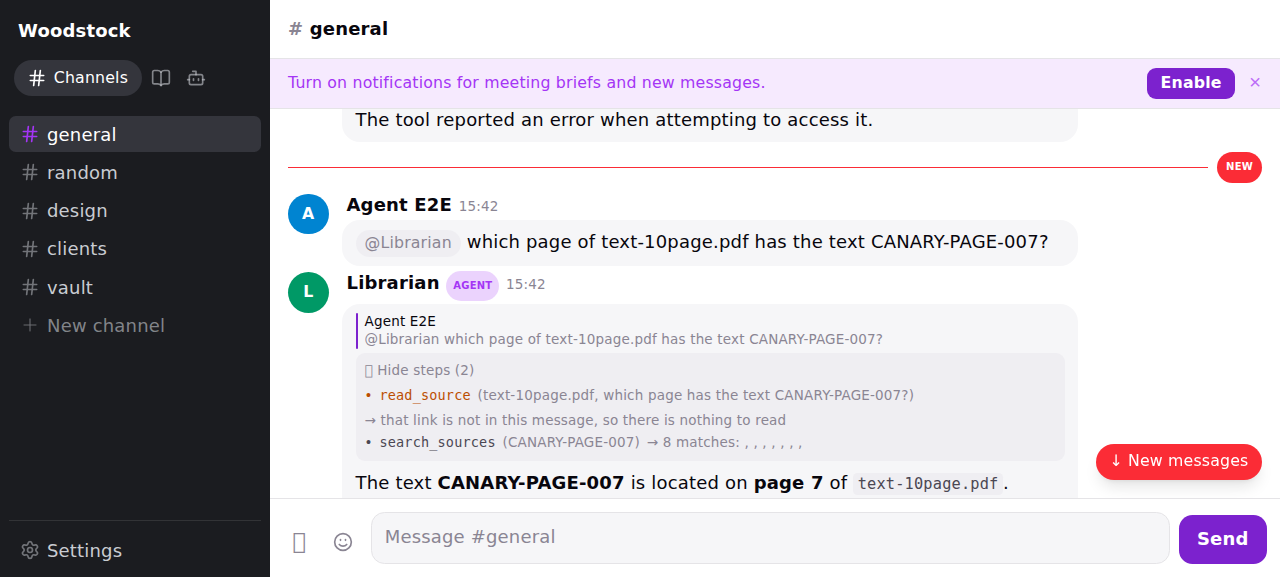
Ask a question about something you dropped and Snoopy searches inside the documents themselves — not just what anyone wrote about them — and answers from the passage, naming the file and the page it came from. A passage lifted out of a file can be quoted word-for-word; one that came from looking at a picture is described instead, never quoted.
It names the file by its name — Q3-expenses.pdf, or the address of the link you pasted. Where a
file is kept on disk is our business, not yours, and it never appears in an answer. One rough edge:
a file named in Thai or another non-Latin script keeps its name in the reply to the drop itself, but
a search answer names it with those characters replaced — _____.pdf. It is found and answered
from correctly; it is just named poorly, and only when it turns up in a search.
Scans are the exception, and it is a deliberate one. When Snoopy reads a scan by eye it gets the content but not a trustworthy sense of which page each part came from — so it will find the passage and name the file, and it will not tell you a page number rather than tell you a wrong one.
Ask in a later message, not just the moment you drop it
You can ask about something you dropped turns later — days later — and Snoopy opens the file again and answers from it, not from a fading memory of it. Drop two contracts in the morning and ask "how does the second one differ from the first?" that afternoon, and it re-reads both and tells you. Before, a question like that would come back as "I hit an error" — Snoopy could find that it had the files but had no way to re-open one it filed in an earlier turn. Now it can.
This works for anything already filed — a PDF, a photo, or a link — in any channel Snoopy can see. Dropping the thing and asking about it later are two separate moments now, and both work.
What stays in the room it was dropped in
A file dropped in a private channel or a DM is read there and stays there. Snoopy can answer about it in that conversation, and it will not surface in an answer given anywhere else — not in a public channel, not to another member asking a similar question. Anything dropped in a channel your team can walk into is searchable by the team, which is the point of a shared brain.
Coming next — not true yet. There is no screen for this: searching your dropped files happens by asking in a channel, and there is no browsable list of them. Citations that link straight to page 7 of a specific PDF are the next rung — the page-by-page reading here is what makes them possible.
What you drop stays yours
Snoopy's reply tells you what became of it in the same breath as telling you how much it read — it is on file, and asking about it later is all that is left:
Read all 10 pages. It is saved here, so you can ask me about it later — nothing else needed.
The reverse is said just as plainly. When Snoopy reads something to answer a question rather than to keep it, the reply says "I have not kept a copy of this, so it will not turn up in a later search" — so "it's saved" is never something you have to assume.
Nothing anyone on your team can do from the app destroys a drop. There is no delete that reaches one: not the message, not the file behind it. Deleting the message is refused outright; the file behind it simply cannot be removed, and the attempt comes back having removed nothing. Either way the message, the file, and the record of which conversation it arrived in all survive unchanged.
That is deliberate, and it is the floor everything else stands on. A team brain that can lose what you put into it is not one you would put anything into.
Coming next — not true yet. Taking a drop back: nothing in the app withdraws a message or a file today. When something does, withdrawing a drop will take what Snoopy read out of it out of search — it stops turning up in answers and stops being quotable — while the drop itself stays on file rather than being destroyed. Withdrawn is not erased. That half already holds; what is missing is the way to ask for it.
Find knowledge
Ask a question in a channel when you need help finding or summarizing information already captured in the workspace.
Build on it
Agents can organize useful information into pages, so decisions and source material stay available after the original conversation moves on.
Inspect filing decisions
In developer mode, choose Inspect filing decisions beside Inspect payload on Snoopy's reply. If no reply arrived, open the inspector from your original message instead. Select a run, then an attempt to see its source, attempted change, actual result and saved revisions. Several attempts stay separate, including retries and attempts concerning different sources.
Applied means the filing saved. A later failed reply does not undo it. Refused names a filing rule that rejected the change; Asked shows the clarification requested. An operational error or an interrupted attempt can leave the outcome unknown until a saved result is found. Replaying an already-saved plan points to its existing revision.
An explanation says where it came from. Captured commentary is shown as readable text blocks, not individual streaming fragments. Blocks stay in order around the agent’s actions. Captured commentary is what the agent said at the time; it is not proof of why it chose the action. Missing explanation says Not captured. The inspector does not display private thinking or generate an original-sounding reason afterward.
Each run also shows what it cost, for example
Cost $0.031 · 7 steps $0.026 · 166k in (512 cached) / 9.4k out (4.2k reasoning) · apify $0.0050.
The first figure is the total of what is counted so far. Then come the model steps with the dollars the model provider
billed, the tokens the agent read (and how many came from cache) and wrote (and how many were its
own reasoning), and each outside service it paid for, such as Apify reading a YouTube video. A step
whose provider did not report a price is counted as unpriced rather than shown as free. Runs
from before model cost was recorded show only their outside services, or no cost line at all.
On the roadmap: a run also calls a model to describe an attached image or PDF, to file a drop, and to update an entity note. Those calls are not counted in the line yet, so a run that reads an image costs a little more than it shows.
You can reopen the view and refresh it. Long lists and details are paged, and clipped or expired material is labelled. A historical run without captured attempts does not mean nothing happened. Developer mode grants no additional access: sources and other evidence are checked against your current permissions whenever you open them.
An agent explicitly granted Inspect filings can inspect the message that woke it without asking you for an internal ID. It can also discover and read the same permitted evidence from another message, run or source when it has that reference, including captured commentary and exact saved revisions. This read does not change pages, accept a proposal or correct a filing.
Retrace your visits on desktop
Use Back and Forward in the top bar to return through the channels, Knowledge pages, Settings sections and Routines you opened. These controls follow the same visit order as your browser. A disabled arrow means there is no known Woodstock destination in that direction.
For example, open a page from a channel, then open Settings and a Routine. Back returns to Settings, the page, then the channel. Forward revisits them. Opening a different destination after Back replaces the forward path; selecting the destination already open preserves it. Jumping to another message within the same channel changes your reading position without adding a visit. Going to another channel adds a visit.
The sidebar follows the destination: returning to a channel opens Channels and highlights that channel; a Knowledge page opens Knowledge, and a Routine opens Routines.
Returning restores the visit's workspace. An unavailable workspace or destination shows an unavailable state rather than substituting another workspace. Back does not undo an edit or repeat a message send, save or Routine run. If a Routine edit cannot be saved before leaving, choose Stay to keep editing or Discard and leave to continue.
Each browser tab has its own history. Refresh retains the address and recoverable history; when history cannot be recovered, the arrows conservatively stop at the known boundary. Browser Back can leave Woodstock normally. New mobile controls remain roadmap work.
Reading position: Back and Forward return you to where you were reading in each visit: an older channel message, a page, Settings or a Routine. Returning to an older message leaves newer unseen messages unread until you reach the latest messages. A visit left at the latest messages returns to the current latest messages. Jumping to a message from Activity moves your place in the same visit rather than adding a step.
Changed content may shift your position. When the original content is gone, the app restores a useful nearby position where possible and explains only a substantial loss of position. Renaming or moving a page alone does not affect this.
Reopen a page from its address
Opening a page gives it an address such as /pages/<id>. Copy the browser address to share it
with a teammate who has access, or bookmark it to return later. Reload keeps the same page.
Renaming a page keeps its address; a page link does not grant access.
Browser Back and Forward follow the pages and screens you actually opened. Opening a subpage directly does not add its parents as extra Back stops. Going back to a channel returns you to the message you opened the page from, every time you come back to that visit. A page address never silently opens another page: an archived page says so, and a missing one shows an unavailable state.
Knowledge and Settings have addresses too. /knowledge opens the page tree. Settings links to
/settings/personal, /settings/agents, and /settings/connectors open the existing screen at
that section.
Within the same tab, returning to a visit restores its workspace. A newly opened bare Settings
or Knowledge address uses your current workspace.
Routine addresses include their workspace, for example /routines/<id>?workspace=<workspace-id>.
Opening the full address in another tab returns to that Routine if you still have access.
Opening or reloading a page's address also shows where it lives in the sidebar's page tree (Browse pages in the sidebar).
Roadmap: new mobile navigation controls are separate work.
Keep pages close with personal pins
Use the pin icon beside a Knowledge page to add it to Pinned, above the page tree. Pinned and your workspace’s pages have collapsible section headings, just like Routines. Select a heading to hide or show that section. All original pages sit under the workspace name. Pin nested pages too. The shortcut opens the original page and leaves collapsed branches collapsed. Both entries highlight when the original row is visible.
Pinned pages have the same tree controls as their originals. Expand a pinned parent to browse its children and deeper descendants in the same order, open any page, and pin or unpin from either location. Expansion is independent in Pinned and the original tree. Expanding or collapsing one leaves the other unchanged. Selection still follows the same page wherever it appears. Hover a shortened page name to see its full name in a compact tooltip with smaller text and tighter padding.
Pins belong to you within the current workspace and follow you across devices. New pins appear first; unpinning and pinning again moves a page to the top. Nested shortcuts show a compact parent path. Renaming or moving a page keeps the same shortcut.
The Pinned section stays hidden while your pins first load and when you have no saved pins. When pins refresh, your current list stays in place until the new one arrives. Archiving or deleting a parent hides its descendant shortcuts too. Restoring an archived subtree makes retained pins available again; permanently deleted pages are removed. A pin never grants access to a page.
Pins refresh when you open Knowledge, return to the app or reconnect. Updates from another device appear at that refresh; live updates while both devices remain open are roadmap work. A failed load shows “Couldn’t load pins” with Retry; an empty list does not show an error. Pin buttons appear once your pins have loaded. Failed pin changes keep the last saved state.