Chat
Keep team conversations organized around the work.
Create channels for projects or topics, then use them to hold conversations with teammates and agents.
Agent appearance assignments
Each agent keeps a saved shape and colour combination in its workspace. Nine shapes and ten colours provide 90 combinations. Each combination is used before one repeats; after 90 agents, new agents reuse a least-used combination. Renaming an agent, adding another agent, or adding new colours later does not change its saved appearance.
Recognize your agents
Each agent has a generated face on a transparent background. The same agent keeps the same face in messages, mentions, and agent lists, even after a rename. People keep their profile photos and initials. Agent faces are enlarged within the avatar slot, with room for motion to extend beyond it without being cropped. Completed agent replies use the same face as the working reply, including older replies saved without an agent author ID.
Idle faces gently breathe, bob, blink, and glance. The current queued or working reply adds thinking eyes and occasional quick body spins, separated by pauses. The working text remains visible, and reduced-motion preferences keep faces still.
Use a channel
The sidebar has a vertical icon bar: your workspace initial at the top, followed by Channels, Knowledge, Agents and Routines. Select an icon to show its list to the right of the divider. The selected section's name appears above the list. Section titles and list icons align across Channels, Knowledge, Agents and Routines. Selected names use stronger emphasis. Routine rows keep their schedule and creator name, without an avatar. The right-panel lists follow the same alignment, with smaller Activity titles and unfilled icons. Settings sits at the bottom of the icon bar. Select the workspace initial to switch workspaces; hover over an icon to see its name.
On desktop, Toggle sidebar beside the back and forward arrows hides the list while keeping the icon bar available. The global bar shows the channel name; page views show clickable breadcrumbs. Drag the left panel's right edge to resize its list. The list starts at 240px and can shrink to 200px; the full sidebar grows to at most half the available app width. Your chosen width is remembered on this device. With the resize handle focused, arrow keys resize it and Home/End choose its minimum/maximum width. Mobile keeps its fixed-width drawer. Choose the plus button beside Channels to create a channel or section. Routines has its own plus button beside its title. Panels use light backgrounds in light mode and dark backgrounds in dark mode.
Choose a channel from the sidebar to follow its conversation. Create a new channel when a project or topic needs its own focused space.
On phones, list rows in both side panels have extra vertical padding for easier browsing. Sections have 20px of separation on phones and desktop, while gaps between list items stay compact.
On a phone, swipe right anywhere on the screen to pull the sidebar out; it follows your finger. In Safari or Chrome, start the swipe a finger's width in from the left edge. A swipe from the very edge is the browser's own "go back" swipe. In the app installed on your home screen, the edge opens the sidebar too. Swipe it back to the left, or tap outside it, to put it away. A quick flick is enough either way. Swipes that start in a text box or on something that scrolls sideways, such as a wide table, leave the sidebar alone.
Channel details on desktop
The desktop panel slides in and out when toggled, and skips animation when reduced motion is enabled.
Select Toggle details at the right of the global bar to open a panel beside the conversation. Chat and the composer remain available. Select the toggle again to close it.
The panel has Activity, Routines, Members, and App tabs. App keeps a shared agent-created static display. Drag the desktop panel edge to resize it; the width is remembered on this device. Activity lists what agents finished in this channel. Routines and Members content is coming soon.
Your open-panel and tab preferences are remembered on this device when browser storage is available. Switching channels updates the panel to the current channel. Leaving Chat hides the panel; returning restores your preference. The desktop panel is hidden on phone layouts.
Channel details on a phone
Tap the top-right Open channel details ellipsis to open the full-screen details view. It slides in and out, and skips animation when reduced motion is enabled. Use Back to chat or browser Back to return to the same conversation. Details closes like a sheet: browser Forward doesn't bring it back, so tap the ellipsis again to reopen it. Chat stays mounted behind details, preserving your draft and reading position.
The selected tab is shared with desktop. Reloading starts in chat; reopening details restores the last tab when browser storage works. The screen respects reduced motion. Activity lists what agents finished in this channel. Routines and Members content remains coming soon. Native Android Back is on the roadmap.
After a reload or switching to desktop, mobile details close too. Whichever way details closed, browser Back from the chat continues to the previous channel without an extra stop on the current chat.
Keep your place
Each channel has its own address: /chats/<channel-id>. When you choose another channel, the
address changes with it. Reload the page or reopen the installed app and Woodstock returns to that
channel instead of sending you to the first one.
You can copy a channel's address and share it with a teammate. Opening the link takes them to that channel; if it belongs to another workspace they can access, Woodstock switches to that workspace first. Opening Chat without a channel address still uses the default channel in their last-used workspace.
The browser Back button follows the channels you visited. A notification you tap while Woodstock is already open also takes you to its channel. Opening a notification from a fully closed app is still on the roadmap.
Catch up on new messages
Messages that need your attention stand out as you read a channel. When someone @mentions you or replies to a message you wrote, their message has a highlighted bubble, including the quoted message above the reply. The highlight is still there when you return to the channel, so you can read the message and reply in place.
Other messages keep their usual background. Messages you wrote stay normal, even if you mention yourself or reply to your own message. The highlight does not change which messages you can see, your unread markers, or which notifications your phone receives.
When you open a channel, a red New line marks the first message that arrived from someone else since you last looked. Your own messages never count as new, so sending a message never moves or adds the line. The line stays where it was while you're in the channel, so it doesn't jump as more messages arrive.
Return to the latest conversation
On a phone, the latest message stays above the composer as it expands or the keyboard opens. The conversation and composer slide together when the keyboard opens or closes, including when your device prefers reduced motion, so their movement follows the keyboard. This also works when you’ve scrolled back: your place stays aligned with the composer rather than jumping to the latest message.
Scroll back to read older messages without losing your place when someone sends a message or an agent replies. When you're more than one chat viewport above the bottom, a circular down-arrow appears above the composer. Hover over it on a computer to see Jump to present.
Tap the arrow to glide back to the latest messages in a short transition, even from far up the conversation, then follow new messages as they arrive. If the phone keyboard is open, it stays open and the same tap starts the return. Scroll or touch the feed to interrupt the transition. With reduced motion enabled, the arrow returns immediately. The arrow fades in and out gently as you move away from or return to the latest messages, including when you scroll back down yourself. Reduced motion disables the fade. It works on phones and computers, and after following a link to a message that's in the loaded conversation. Empty and short conversations don't need the arrow.
The arrow replaces the separate New messages button. The red New line still marks where your unread messages began. On the roadmap: when messages arrive while you read older ones, the same arrow will expand into a New messages pill that takes you to the first new message.
Read back to the beginning
A channel opens on its newest 50 messages. Keep scrolling up and earlier messages load on their own, 50 at a time, all the way to the channel's first message — there is no button to find. The message you are reading stays where it is while they load and when they arrive.
- A small spinner at the top of the conversation shows that earlier messages are loading.
- If they can't load, the top shows Couldn't load earlier messages with Retry. Everything already on screen stays.
- At the first message, the top shows Beginning of #channel and nothing more is loaded. A channel with 50 messages or fewer shows it as soon as you open it.
Deleted messages keep their place as Message deleted and never stop the scroll early. Switching channels or reloading opens at the newest messages again; your place in older history is not remembered. After a reconnect that has to replace the conversation with its newest messages, the earlier messages you had loaded and your reading position go with it — scroll up again to reload them.
Channels with unread mentions show a white @ on a purple badge in both light and dark appearance.
What you've read follows you. Open a channel on your phone and its unread dot and @ badge clear on your computer and in your other tabs within a few seconds, with no reload. A channel you left open in a background tab doesn't count as read: its new messages stay unread on your other devices until you look at that tab again.
You can leave a channel open and come back later, whether you locked your phone or left the tab in the background. When you come back, Woodstock catches up within a couple of seconds: messages people sent while you were away, updates such as GitHub posts and an agent's progress appear in the open channel in the order they were sent, channels added or renamed meanwhile show in the sidebar, and unread dots mark the channels with new messages. You don't need to reload or switch channels. This also works when your phone still thinks it's connected after the app wakes up. If more arrived than a channel shows at once, you see the newest ones, just as you would by opening the channel again. If Woodstock can't fetch them yet, the connection banner stays up until it does.
The banner at the top of the chat tells you which of two things is happening:
- Reconnecting… (grey) — your phone has internet, but Woodstock is catching up with the channel. Messages you send still go out right away. A quick reconnect, like opening the app again, shows no banner at all; it only appears if reconnecting takes more than a couple of seconds.
- Offline — messages will send when you reconnect. (yellow) — your device has no internet. Text messages you send wait on your device and go out once you're back online. Files and photos can't wait offline: they go back into the message box so you can send them again.
When you open a channel or reload it, you land on the latest message. You stay there while images and reactions finish loading. If you've scrolled up to read something older, images and reactions loading above won't pull you back down.
A photo takes its final size in the conversation as soon as its message appears, before the picture itself arrives. Nothing above or below it moves when it loads, and a photo you've just sent doesn't flicker when it finishes sending. Photos sent before this change don't know their size: they keep a 4:3 space, with the photo fitted inside it and never stretched.
Writing on your phone
With the keyboard closed, the message box has a 48px bottom gap, or more if the phone’s safe area needs it. A background gradient masks scrolling messages behind the composer and the gap below it. When the keyboard opens, the message box returns to its usual spacing above the keyboard.
The message box starts as a rounded pill with a + button for attachments. Tap the text field to open it: the text starts at one full-width line, with + below. The send arrow appears once you enter text or attach a file. After you send, the cursor stays in the box and the keyboard stays open for your next message. Use your phone keyboard to add emoji. The message box follows the visible screen above the keyboard, keeping the attachment and send buttons in reach.
Photos and files appear as square previews at the top of the message box, with a close button to remove them before sending. Tap a photo preview to view it fullscreen, then close it to return to your draft. This preview has no save or forward actions. Long messages grow up to the space left above the keyboard, reserving room for attachments and the buttons, then only the text scrolls vertically; the attachment previews and send button stay in place. An unfinished draft keeps the box expanded when you dismiss the keyboard.
Your draft stays with its channel
A message you haven't sent stays in the channel or agent chat where you started it. Switch to
another channel and its composer shows only its own draft, or nothing. You can't send a half-written
#design message to #engineering by mistake.
If Woodstock is open in another tab in the same browser, that tab follows the draft as you type. The text, reply, picked agent and sidebar pencil update there too. Sending the message or emptying the composer removes the draft from every open tab.
Your text, @mentions, reply and picked agent stay when you open Knowledge, Routines, a page or Settings and come back. They also return after a reload or when the app is reopened. Attached files stay while the app is open; after a reload, the draft names each file so you can attach it again.
While a draft waits, a muted pencil replaces the channel's # in the sidebar. In the Agents tab it
replaces the agent's icon. The unread dot and @ badge still show beside it. The pencil goes away
when you open that channel, send the message, or delete everything in the composer.
A few limits:
- Drafts stay in this browser or app. Other tabs in the same browser share them, but another browser, phone or computer won't show them.
- Attached file bytes stay in the tab where you picked them. Other tabs, reloads and restarts show the file names so you know what to attach again ("photo.jpg wasn't kept — attach it again"). Your text, reply and picked agent do come back.
- Drafts belong to you. If someone else signs in on this device, they see none of your drafts. A successful sign-out removes yours from the device. A sign-out control in the signed-in app is planned; it is not available there yet.
Organize channels into sections
Choose the plus button beside Channels, then choose Create section. Give the section a name and emoji. New sections appear below unsectioned channels; use the plus button on a section to create a channel directly inside it.
Choose a section title to collapse or expand it. A collapsed section keeps your active channel visible and still shows unread or mention indicators, so you do not miss activity.
On desktop, drag a section to reorder it among other sections. Drag a channel onto a section to move it there, or drop it in the unsectioned area at the top to move it back. Right-click a section on desktop, or press and hold it on a phone, to edit its name and emoji or delete it. Deleting a section cannot be undone, but its channels are never deleted with it: they move to the unsectioned group, keeping their order.
Sections are shared with your whole workspace: a teammate's changes appear in your sidebar live. Your own change shows immediately; if it cannot be saved — for example, a teammate deleted the section you were dropping into — the sidebar returns to the saved arrangement and shows a brief notice so you can try again.
Reordering sections and moving channels by touch on a phone is on the roadmap; today those drags work with a mouse or trackpad only.
Change channel settings
Hover over a channel in the sidebar and choose its settings icon. On a phone, press and hold the channel instead. You can rename the channel, give its agent instructions for how to help there, or archive the channel. Archive hides it from the active list without deleting its messages; you can restore it later.
Auto-capture
Turn on auto-capture so an agent picks up what people drop in the channel without being asked.
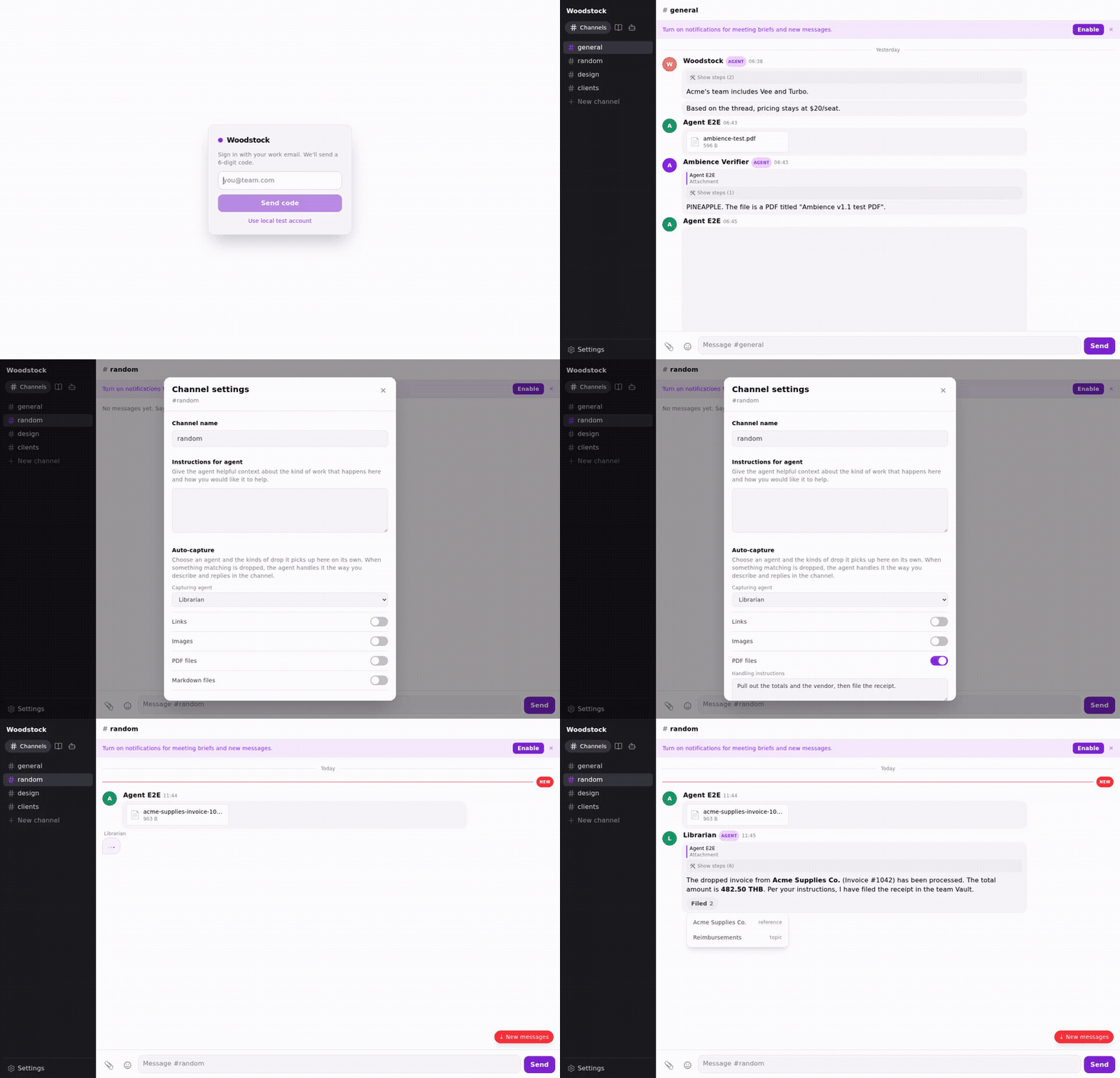
Set it once in Channel settings, then drop a file and watch the agent follow your instruction.
- Under Auto-capture, choose the agent that captures here.
- Switch on the kinds of drop it should pick up: Links, Images, PDF files, or Markdown files.
- For each kind you switch on, you can write Handling instructions: how you want the agent to treat that kind of drop, in your own words. For example, "Pull out the totals and the vendor, then file the receipt."
- Choose Save changes. Reopen the settings and you will see the agent, the kinds, and the instructions you saved.
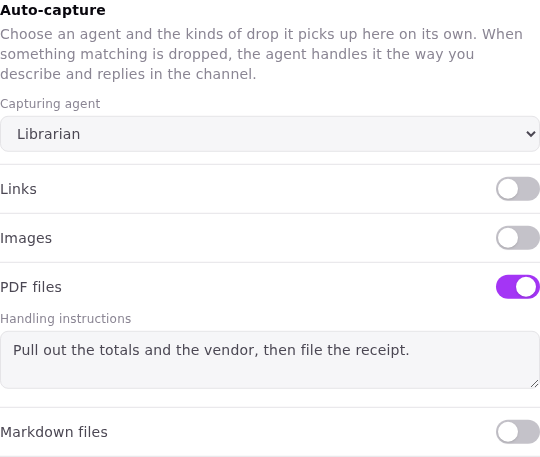
Reopened after saving: the agent, the kind, and the instruction are what you set.
From then on, a matching drop in this channel wakes the chosen agent once. It follows your handling instructions for that kind and replies in the channel, the same way it does when you ask it directly. A drop of a kind you left switched off wakes nobody.
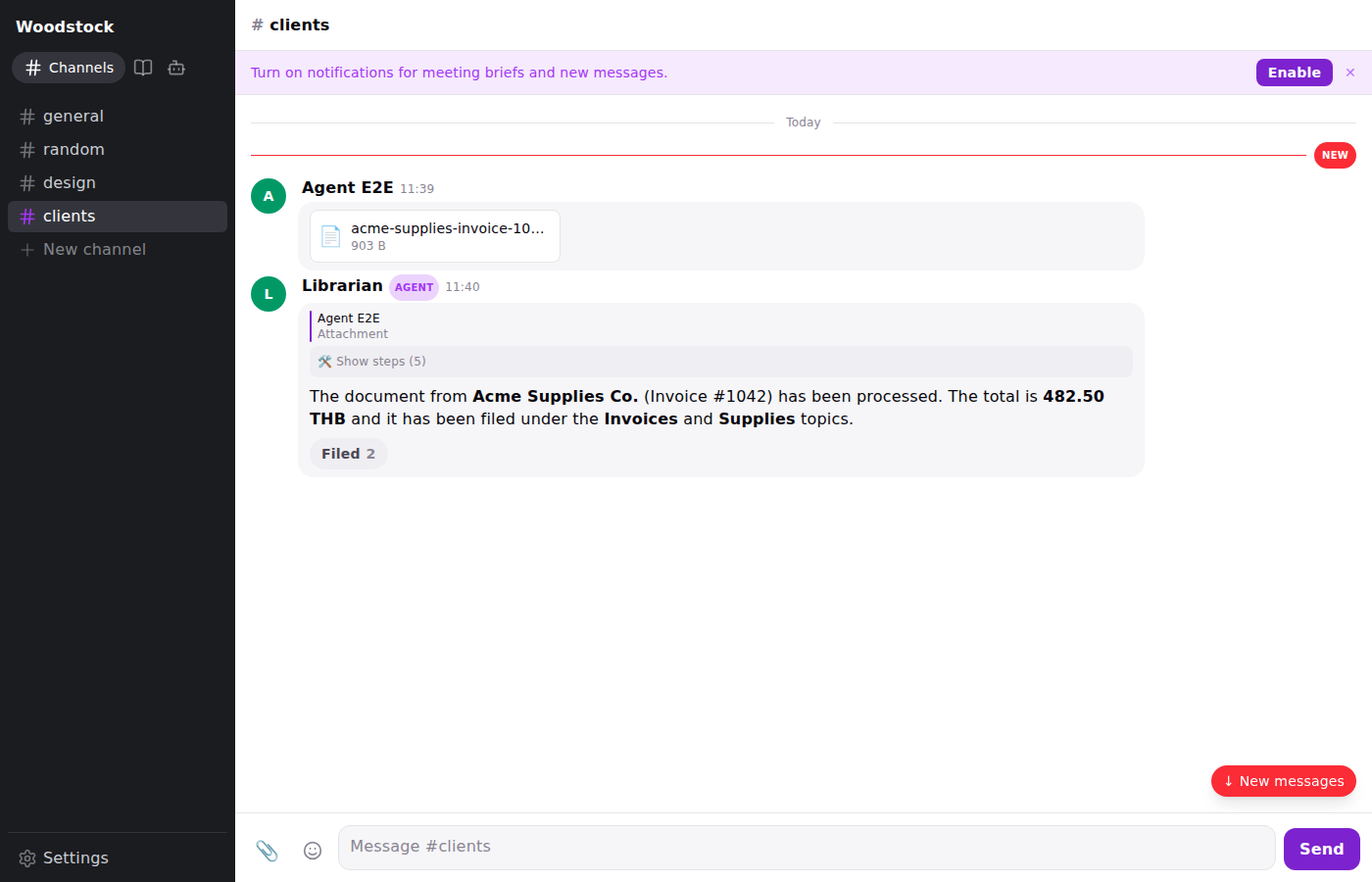
A channel has one auto-capture setup. Once you save one here, it is the only one that applies in this channel: choosing a different agent replaces the previous one, and the workspace default (below) no longer captures here either.
Your workspace may already have a default capture rule that applies to every channel. When it does, the switches show that rule with the note Inherited from the workspace default, and the handling instructions are pre-filled with the default's, so you can start from them. Saving without changing anything keeps the channel on the default. Switch every kind off and save to turn capture off in this channel only; other channels keep the default.
If the workspace has no agent yet, the section says so, and capture cannot be turned on until an agent exists.
Notifications
Your phone buzzes only when a teammate actually addresses you — not for every message in a busy channel. You get a push when someone:
- @mentions you in a channel,
- replies to a message you wrote, or
- sends you a direct message or posts in a private channel you belong to.
An ordinary message in a channel stays silent on your phone. It still marks the channel unread and shows in the sidebar, so you can catch up in your own time — it just does not interrupt you.
A reply to a message that only mentioned you — where the reply neither mentions you nor answers something you wrote — stays quiet too. You are notified when you are addressed, not for every ripple in a thread you were once named in.
The daily brief still reaches everyone in the workspace.
To turn notifications on, tap Enable on the banner at the top of the chat on your phone. The banner is hidden on desktop browsers for now; desktop notifications are on the roadmap.
Choosing which channels notify you, muting a channel, and a quiet-hours window are on the roadmap; today the rule above applies everywhere.
Write a message
On desktop, the message box keeps its controls in one row: + to attach a file on the left, your message in the middle, and emoji and the circular send button on the right. Focusing the box or typing keeps this layout; it does not switch to an expanded composer. The send button is disabled until you add text or an attachment. A soft background fade above the message box keeps it visually separate from the conversation. As your message grows to multiple lines, attachment, emoji and send stay at the bottom of the box. Attachments appear as rounded preview tiles with a remove button, matching the phone layout.
Write messages in Markdown. Use headings, lists, links, and code when they help make your message clear.
When you send, the message box empties straight away and your message appears greyed out while it travels. The cursor stays in the box, and on a phone the keyboard stays open, so you can start your next message right away. If a message can't be sent, its words come back into the box with a note saying why. If you've already started the next message, the unsent one goes in front of it, so nothing you wrote is lost.
On a computer, Enter sends and Shift+Enter starts a new line. On a phone, the keyboard's Enter key starts a new line, like other messaging apps; tap Send to send.
Keyboard shortcuts
On a computer keyboard:
- Arrow Up in an empty message box opens your latest message for editing. It works when the box has no text, no attached file and no reply quote.
- Cmd+B on a Mac, or Ctrl+B on Windows and Linux, makes the selected text bold. The box
shows
**bold**, and the sent message shows it in bold. If you select several lines, each line is made bold separately. With nothing selected, you get****with the cursor in the middle, ready to type. Press it again on bold text to remove the bold. One Cmd+Z (Ctrl+Z) undoes either change. - Escape cancels an edit you have open in a message.
Give feedback on an agent response
On a computer, hover over an agent's message and choose Good response (thumbs up) or Bad response (thumbs down). On a phone, long-press the message to find the same actions. You do not need developer mode.
A feedback dialog opens with an optional comment. Choose Submit to save your feedback; Cancel, Escape, or tapping outside the dialog closes it without saving. If saving fails, your comment stays in the dialog so you can try again.
The selected thumb highlights after feedback saves. Open either thumb again to change your rating or edit your comment. Your feedback stays saved when you reload the conversation. These controls appear on saved agent messages, rather than teammates' messages or deleted messages.
Copy a message
Forward and Create thread are hidden from the message menu for now.
On a computer, open More actions on a message and choose Copy. On a phone, long-press the message and choose Copy. You can copy your own messages, teammates’ messages and agent replies. Woodstock copies the message text as written, including line breaks and Markdown, and briefly shows Copied. When you paste into the composer, user and agent mentions and page references appear as tags instead of showing their stored IDs. The tags keep their original references when you send. Messages containing only files have no Copy action. If your browser cannot copy, a note says so instead of claiming success.
Correct or withdraw a message
Open the actions on a message you sent and choose Edit to correct its text. On a computer, make the change in the message and choose Save. On a phone, the existing composer opens with an Editing message bar; choose Send to save or × to cancel. Your unfinished channel draft returns after either choice, and leaving the channel cancels the edit. Edited messages show (edited) directly after their text. A message with files can have its caption emptied; its files stay.
On a computer you can skip the mouse. Press Arrow Up in the empty message box to open your latest message for editing, with the cursor at the end of its text. Enter saves the change and Escape cancels it. Either way, the cursor goes back to the message box. You can have several messages open for editing at once, and opening another never discards what you've typed in the first.
Choose Delete to withdraw a message. Woodstock asks you to confirm in a dialog, then leaves Message deleted in the conversation so replies still make sense. Deleting a message with files also withdraws them: nobody can open them from chat or have an agent read them again. Woodstock keeps the message's earlier text and its files privately, so an operator can recover them.
Everyone viewing the channel sees an edit or a deletion as it happens, without reloading.
Edits change text only. They do not resend notifications, invoke an agent, or revise work an agent already completed from the earlier message.
What deleting does not reach:
- A file link someone already opened keeps working until it expires, up to an hour.
- Notifications already delivered, and copies already sent to a connected Discord channel.
You can attach only files you uploaded yourself.
Inspect an image without leaving chat
Tap an image in a message to open it full-screen. On a phone, a light scrim keeps Close and the sender at the top, with the first two lines of the message at the bottom. Mentions stay readable as handles, not internal IDs. When a message needs more than two lines, choose More to read it, or the ••• button in the top-right corner for Save and Forward. Save opens your phone’s share sheet: choose Save Image to add it to Photos. Browsers without that option download the image as a file instead. Tap the image to hide those controls for an unobstructed view; tap again to bring them back. On a computer, the image fills the focused dark viewer; click it to zoom in or out, then scroll a zoomed image to inspect it. The sender and time stay at top-left, while Save and Close stay at top-right; Save downloads the image. Choose Close, click the empty area around an image, or press Escape to return to the same conversation.
You may see Forward in the viewer. It is deliberately disabled for now: forwarding an image to another channel is not available yet.
Send a video
Attach a video the same way as a photo: tap +, drop it onto the conversation, or paste it. MP4, MOV and WebM clips up to 60 MB are accepted. Photos, PDFs and other files keep their 10 MB limit. A larger clip never joins your message: the box names the file, its size and the limit.
When you send, the message appears straight away with a progress bar on the video. Files over 6 MB go up in pieces, so a dropped connection pauses the bar instead of starting over. When you're back online, the upload carries on from where it stopped. If it still can't finish, the video goes back into the message box with a note saying why, so you can send it again.
Once it arrives, the bar becomes a player showing the clip's first frame. Anyone in the channel can play, pause, seek and go full-screen right in the conversation, and it's still there when they scroll back or reopen the channel.
A few limits:
- Some clips can't play in every browser. iPhones often record in HEVC, which many Android phones and computers can't play in the browser. Those clips show as a file with its name and size instead of a player; tap it to download and watch it in another app.
- Agents can't watch videos yet. If you send a video to an agent, it says plainly that it can't read that file rather than guessing what's in it.
- An upload doesn't survive leaving the app. Reloading or closing the app mid-upload stops it; send the video again.
- Videos go in channels. Direct messages don't take attachments yet.
Add emoji
Pick an emoji from the smiley button beside the message box, or type : followed by a name and
choose from the list that appears — :fire finds 🔥, :thailand finds 🇹🇭. Arrow keys move
through the list, Enter or Tab inserts the one you have highlighted, and Escape closes it.
If you already know the name, type it out in full and it turns into the emoji as you close the
second colon: :tada: becomes 🎉.
A colon on its own is just a colon. The list only appears once you start typing a name, so Enter still does what it normally does.
Typing : and a name works when you edit a message too.
Reactions
On desktop, hover over a message to reach your three most frequent emoji first, followed by the full picker and message actions. Quick emoji use the same hover background as the other action buttons. Tap a quick emoji to add or remove your reaction.
Choose Add reaction from a message's actions to open the same emoji picker you use when writing a message. On a phone, press and hold the message to open its actions. Tap one of the five quick reactions across the top, or the final smiley button to open the full picker. The quick row starts with 👍, 👌, 😮, 🎉 and 👀, then prioritizes emoji you choose most often on this device. Choosing an emoji adds a reaction beneath the message immediately. Your reaction stays selected when you return to Chat, and teammates who can see the message see it appear without reloading.
One person's reaction shows just the emoji, such as 🎉. When another person chooses the same emoji, the chip shows 🎉 2. Hover over the chip, focus it with a keyboard, or press and hold it on a phone to see who reacted. Select the chip to add or remove only your own reaction. If saving fails, the chip returns to its previous state and a short error lets you try again.
Reactions do not send notifications.
Completed agent outputs
Choose Activity in Channel details to see everything an agent finished in this channel, after later conversation has buried it. Every change an agent makes is recorded by the change itself, so nothing depends on the agent remembering to report it, and a new kind of agent work appears here on the day it ships.
| What the agent did | Example row | The title opens |
|---|---|---|
| Filed a source | Filed receipt — Acme invoice.pdf | the source |
| Organized a drop | Filed meeting notes — Acme kickoff | the source |
| Created, updated or renamed a page | Created page Q3 budget | the page |
| Archived or restored a page | Archived page Old pricing | the page, once restored |
| Merged pages | Merged Acme Ltd into Acme Corp | the page |
| Created a channel or changed its details | Created #reimbursements | the channel |
| Changed what a channel files | Set #money to file receipts automatically | the channel |
| Created, changed, ran or removed a routine | Created routine Daily sales brief | — |
| Posted a routine's result | Posted the Daily sales brief | — |
| Posted a reply with a chart or visual | Posted a visual | — |
| Filed a Plane task, or added it to the cycle | Refund Acme overcharge | the task in Plane ↗ |
Each row has an icon for the kind of work, a title naming the thing as it was called at that moment, and a subtitle saying who the agent did it for ("Nok filed a receipt", "Created for Ploy"). The agent's name is left off while each workspace has one main agent. Rows are grouped by day in your device's local time; Load more shows earlier ones.
One row per thing per reply. Everything an agent does to one thing in a single reply is one row: creating a Plane task and adding it to the cycle reads "Refund Acme overcharge · WS-123 · Cycle 37". The same page updated in five separate replies is five rows.
Two places to tap. An underlined title opens the thing itself. Anywhere else on the row jumps to the agent's message about it in the chat; for a question the agent asked in that reply, that is the question card, and for an approved request it is the agent's reply after the approval. A title that is not underlined has nothing to open: the page is archived, the channel is gone, or the row is a message (a routine's result, a visual). If the agent's message never posted, tapping the row says Original message is unavailable. Titles and subtitles stop at two lines; hover shows the full text. Showing the full text on a long-press on a phone is on the roadmap.
What never appears: ordinary answers that saved nothing, questions the agent asked, requests still waiting for approval or declined, failed attempts, and anything a member did by hand. Your own changes are still recorded privately for later features; nobody sees them in Activity.
Agent work from before this release is filled in once, from the agents' run records, so older channels do not start empty. A row about a private channel you are not in is hidden from you. An empty Activity says no agent has finished anything here yet. A loading failure offers Retry. Switching channels clears the previous channel's entries, and Activity refreshes when you reopen it and when an agent posts in the channel.
Open the conversation behind an output
Select an Activity entry to reach its original message, even when it is older than the messages currently loaded. While it loads, the entry you tapped shows a small spinner; the conversation stays still until it moves once to the message. When the message is within the channel's newest 250, earlier messages load into the conversation you are in until it is there, so you land in one continuous conversation: scroll down to walk back to the latest messages, with new messages and agent replies still arriving at the bottom. A card's entry lands on the agent's answer to it. An older message opens on its own with the conversation around it; scrolling up from there loads earlier messages the same way, and Jump to present brings you back to the latest. Deleted messages show as Message deleted just as they do in the rest of the chat. The message you opened has to still be there: if it was deleted, you see Message unavailable. Only the output bubble fades into the mention background over 500ms, holds for two seconds, then fades out over 500ms; existing mentions stay highlighted. Desktop keeps Activity open, while mobile returns to chat after the message is ready.
The underlined title opens the exact page, channel, source or Plane task. A filed file or link opens the original in a new tab; a filed typed note has no file behind it, so its title opens the page the note was filed on, the one the title names. A missing output never opens a similarly named page. If a message cannot be loaded, Activity stays open and a note slides up from the bottom to say so; temporary failures offer Retry. The note leaves after five seconds, waits while your pointer or keyboard focus is on it, and can be closed with ✕.
While reading an older message opened on its own, new messages leave your position alone. Jump to present retrieves the latest conversation and resumes following it. If you send a message while reading older messages, the chat takes you back to the latest messages first, so your message appears at the bottom with anything that arrived while you were reading.
Routines and members in channel details
Channel details matches the sidebar's background and hover treatments in light and dark mode. Tabs show icons, with the selected tab's name beside its icon. On desktop the panel floats beside the conversation; on a phone it opens full-screen.
The Routines tab shows saved routines that deliver to the current channel, including paused routines. Select one to open its existing details and run history. Loading failures offer Retry; an empty list points you to asking an agent to create a routine.
Members shows Workspace agents first: internal agents belonging to your current workspace. This list does not imply that an agent was enabled specifically for the channel, and it offers no management actions.
Roadmap: the channel's People directory needs an authorized read and is not available in this frontend assembly. Until then, Members states that clearly rather than showing a partial directory.